

In these examples, we’ll show the full Job Listener lifecycle implementation, complete with
ack to acknowledge the job, update to update the job’s progress, and complete or fail to complete or fail the job.To make this simpler, we provide a plugin called Job Handler that handles the job lifecycle for you. This plugin works by listening to the job:ready event and executing the handler callback. There is also an optional tick function which allows you to update the Job’s progress.For example, this listener implementation contains all the code necessary to handle a job:Job Lifecycle
Lifecycle Events
Jobs fire the following Events during their lifecycle. In chronological order, the Job Events are:
You can listen on any of these events in your Listener, but the most common event to listen for is
job:ready.
Types of Jobs
Jobs can be triggered in a number of ways, most commonly in response to user activity. Jobs are then managed via Listeners, which receive Events published by Flatfile in response to activity. There are three types of Jobs on the Flatfile Platform:Action-Based Jobs
Actions are developer-defined operations that can be mounted on a number of domains (including Sheets, Workbooks, Documents, and Files). Mounting an Action means attaching a custom operation to that domain. That operation can then be triggered by a user event (clicking a button or selecting a menu item).When an Action is triggered a
job:ready Event for a Job named [domain]:[operation] is published. Your Listener can then be configured to respond to that Action via its Event.job:ready event, filtered by the domain:operation Job - where, in this case, workbook is the domain, export is the operation.
Custom Jobs
Another trigger option is to create a Custom Job via SDK/API. In the SDK, Jobs are created by calling theapi.jobs.create() method.
Creating a custom Job in your Listener enables any Event to trigger a Job.
Here’s an example of creating a custom Job in a Listener:
System Jobs
Internally, Flatfile uses Jobs to power many of the features of the Flatfile Platform, such as extraction, record mutation, and AI Assist. Here are some examples of Jobs that the Flatfile Platform creates and manages on your behalf:Job Parameters
Required Parameters
When creating a job, the following parameters are required:- type (string) - Workbook, File, Sheet, Space
- operation (string) -
export,extract,map,delete, etc - source (string) - The id of the data source (FileId, WorkbookId, or SheetId)
Optional Parameters
- trigger (string) -
manualorimmediate - destination (string) - The id of the data target (if any)
- status (string) -
created,planning,scheduled,ready,executing,complete,failed,cancelled - progress (number) - A numerical or percentage value indicating the completion status of the Job
- estimatedCompletionAt (date) - An estimated completion time. The UI will display the estimated processing time in the foreground Job overlay
- info (string) - Additional information regarding the Job’s current status
- managed (string) - Indicates whether the Job is managed by the Flatfile platform or not
- mode (string) -
foreground,background,toolbarBlocking - metadata (object) - Additional metadata for the Job. You can store any additional information here, such as the IDs of Documents or Sheets created during the execution of Job
Working with Jobs
Jobs can be managed via SDK/API. Commonly, Jobs are acknowledged, progressed, and then completed or failed. Here’s a look at those steps.Acknowledging Jobs
First, acknowledge a Job. This will update the Job’s status toexecuting.
Updating Job Progress
Once a Job is acknowledged, you can begin running your custom operation. Jobs were designed to handle large processing loads, but you can easily update your user by updating the Job with a progress value.Progress is a numerical or percentage value indicating the completion status of the work. You may also provide an estimatedCompletionAt value which will display your estimate of the remaining processing time in the foreground Job overlay. Additionally, the Jobs Panel will share visibility into the estimated remaining time for acknowledged jobs.
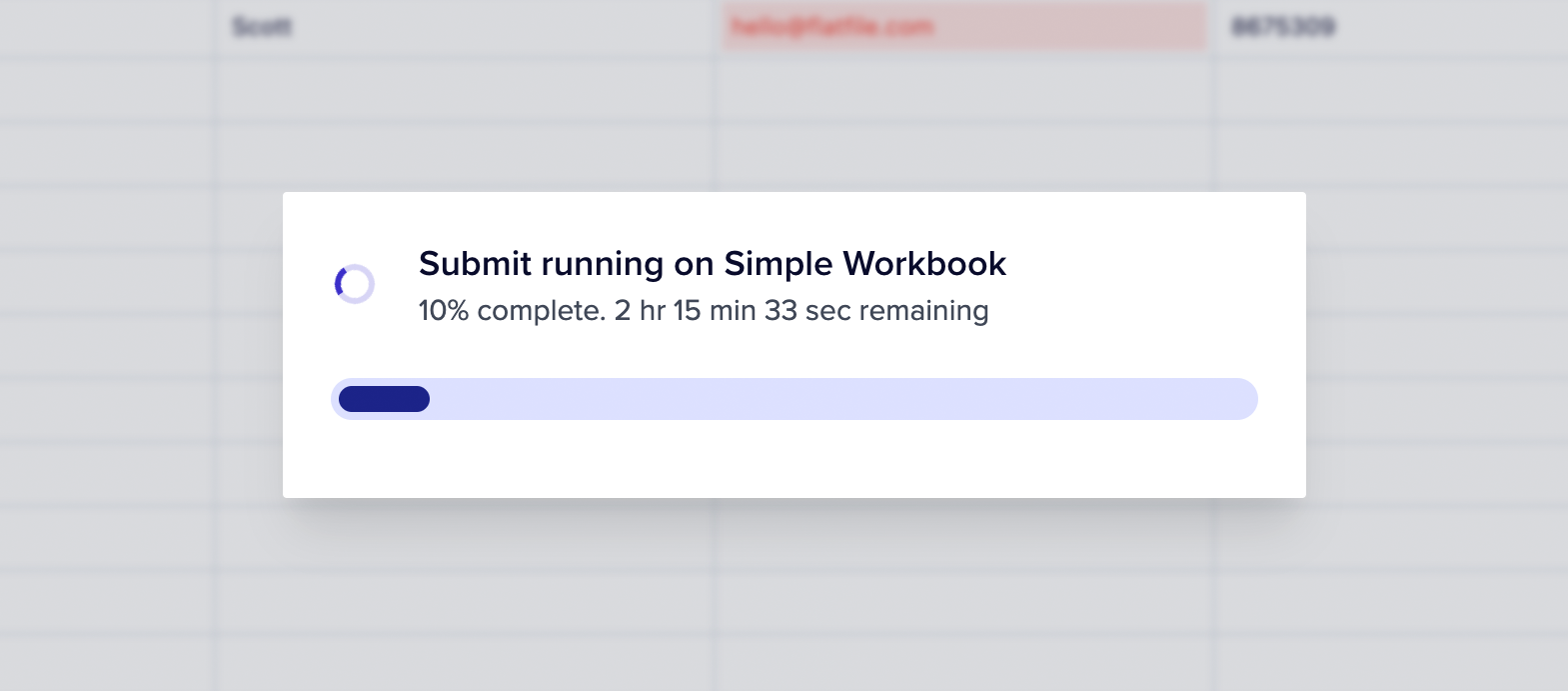
Example of estimated time
Completing Jobs
Once a job is complete, you can display an alert to the end user usingoutcome.
Job Outcomes
You can enhance job completion with various outcome options to guide users to their next action:
Example of a 'next' button