

Overview
When an Action is triggered, it creates a Job that your application can listen for and respond to. Given that Actions are powered by Jobs, the Jobs Lifecycle pertains to Actions as well. This means that you can update progress values/messages while an Action is processing, and when it’s done you can provide an Outcome, which allows you to show a success message, automatically download a generated file, or forward the user to a generated Document. Actions are mounted on resources like Workbooks, Sheets, Fields, Documents, and Files. Generally, Workbook, Sheet, Field, and Document Actions are configured within a Blueprint object, while File Actions are appended to the file during the upload process. Alternatively, Actions can be mounted to any of these resources via API in a Listener. Sheet Actions can be executed on the entire Sheet, for a filtered view of the Sheet, or selectively for the chosen records. See Sheet Action Execution Modes for details on how actions handle different data selections.In these examples, we’ll show the full Job Listener lifecycle implementation, complete with
ack to acknowledge the job, update to update the job’s progress, and complete or fail to complete or fail the job.To make this simpler in practice, we provide a plugin called Job Handler that handles the job lifecycle for you. This plugin works by listening to the job:ready event and executing the handler callback, even catching errors to fail the job. There is also an optional tick function which allows you to update the Job’s progress.For example: With the Job Handler plugin, the 35-line File Action Listener defined below would be implemented simply as:Workbook Actions
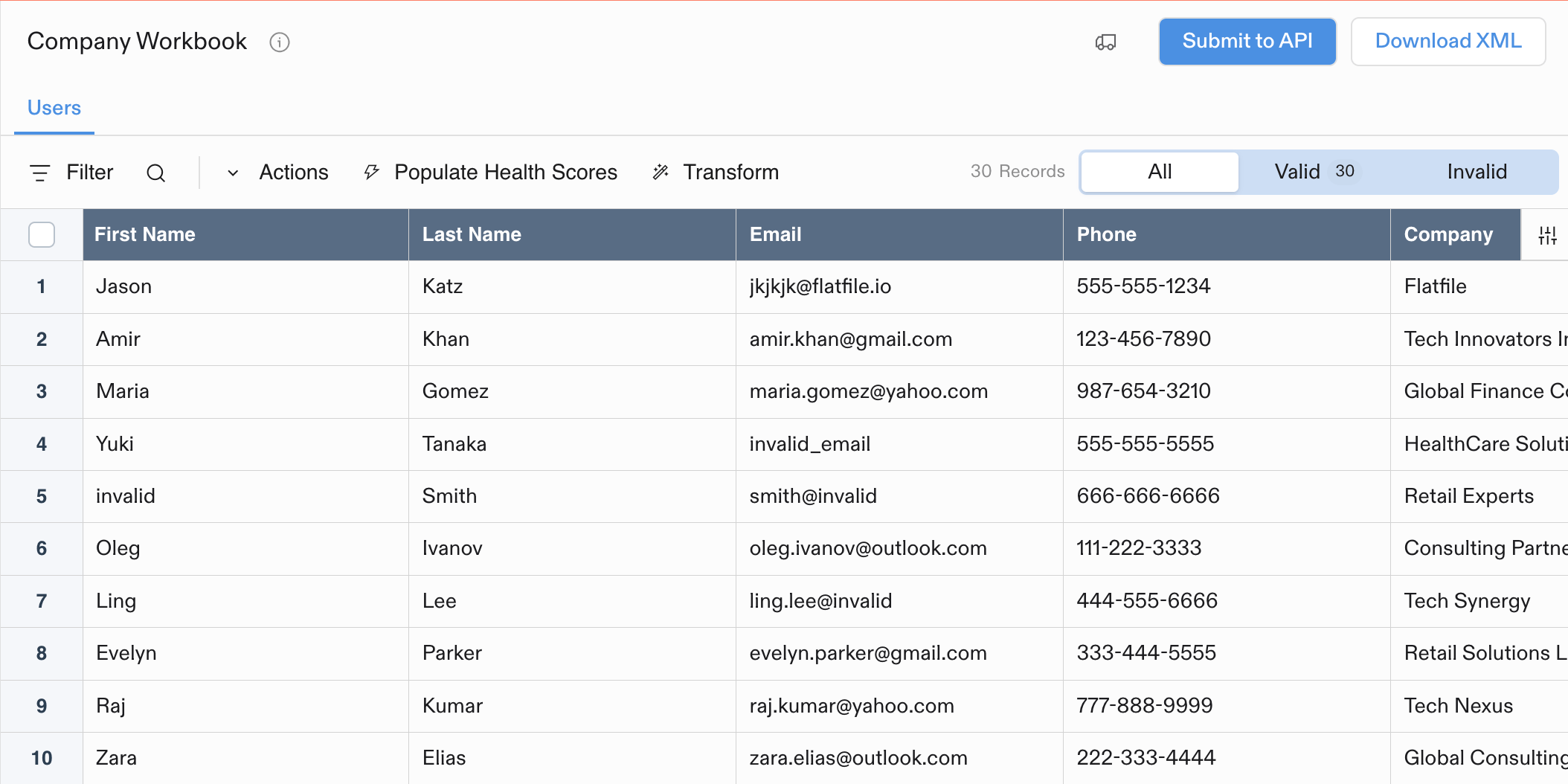
Two Workbook Actions: A primary action (Submit to API) and a secondary action (Download XML)
- Sending a webhook that notifies your API of the data’s readiness
- Populating a Sheet with data from another source
- Adding two different fields together after a user review’s initial validation checks
- Moving valid data from an editable Sheet to a read-only Sheet
Usage
If you configureprimary: true on an Action, its button will be highlighted in the Workbook.
If you configure trackChanges: true, it will disable your actions until all commits are complete (usually data hooks).
Blueprint Configuration
First, configure your action in your Blueprint:Listener Implementation
Next, create a listener to handle thejob:ready event for your action.
Sheet Actions
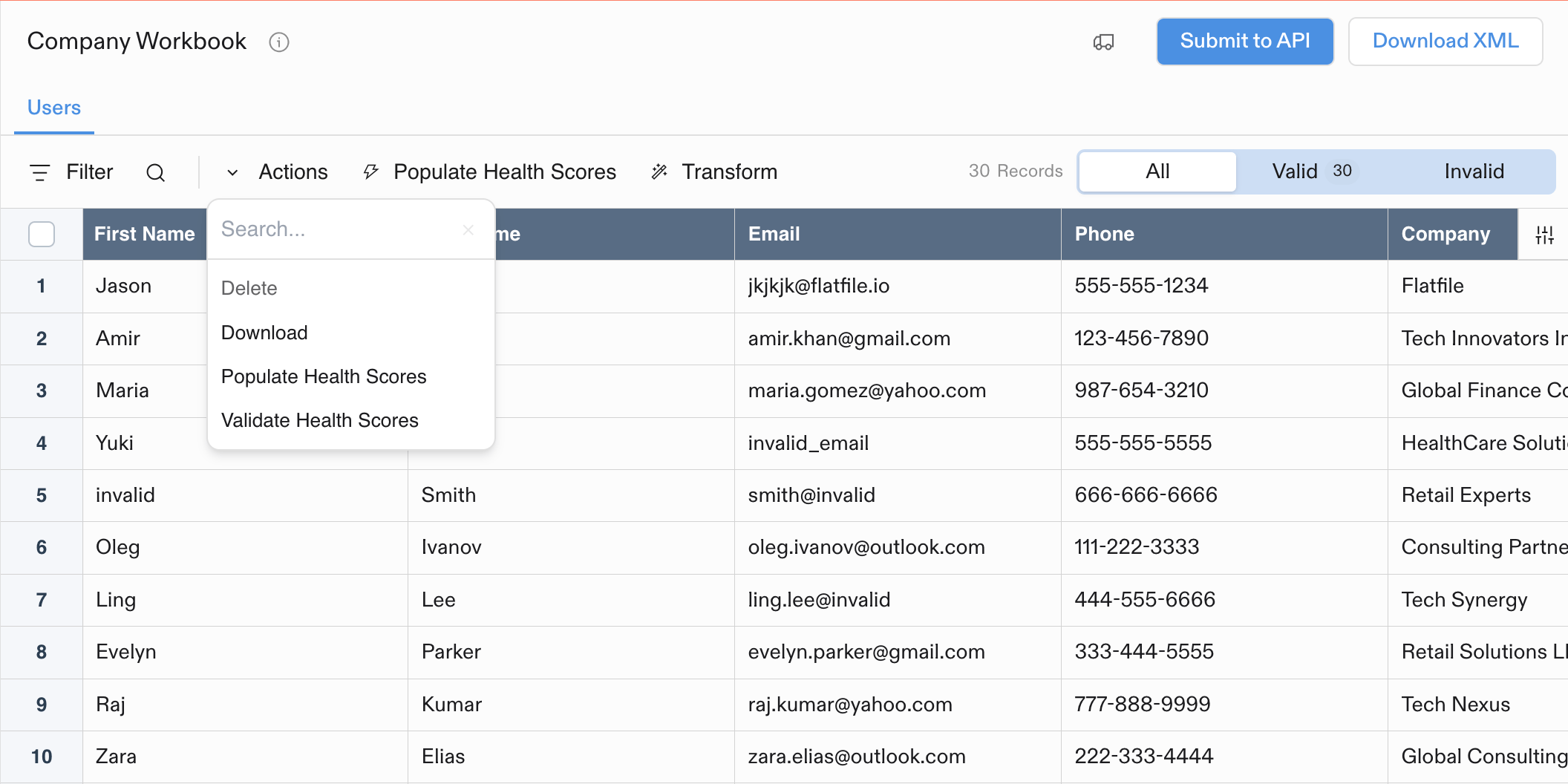
Two Sheet Actions: A primary action (Populate...) and a secondary action (Validate...)
Usage
If you configureprimary: true on an Action, it creates a top-level button as well as placing it in the dropdown menu.
Blueprint Configuration
First, configure your action on your Blueprint. Add the action configuration to your sheet definition:Listener Implementation
Next, listen for ajob:ready and filter on the domain (sheet) and the operation of where the action was placed. Be sure to complete the job when it’s done.
Sheet Action Execution Modes
Sheet Actions are powerful because they can operate on different subsets of data within a sheet. When a Sheet Action is triggered, it automatically receives context about what data should be processed based on the user’s current view and selections.How Sheet Actions Handle Data Context
When a Sheet Action job is created, it receives aquery object in the job’s subject that specifies which records to process:
Three Execution Contexts
1. Entire Sheet (No Filter, No Selection)- Processes all records in the sheet
query.filteris"all"or undefined- No
idsorexceptionsarrays
- Processes only records matching the current filter
query.filterindicates the filter type:"valid"- Only valid records (no errors)"error"- Only records with validation errors- Custom filters if applied
- May include search parameters if user has searched
- May include FFQL queries via the
qparameter for advanced filtering
- Processes only user-selected records
- When no other filters applied:
query.idscontains specific record IDs to INCLUDE - When filters are applied:
query.idscontains record IDs to EXCLUDE from the filtered results
Implementation Example
Built-in Action Examples
Built-in actions like Delete and Download demonstrate these execution modes:- Delete All - Removes all records when no selection/filter
- Delete Selected - Removes only selected records
- Delete Valid/Invalid - Removes records matching the current filter
- Download Filtered - Exports only records matching current view
Field Actions
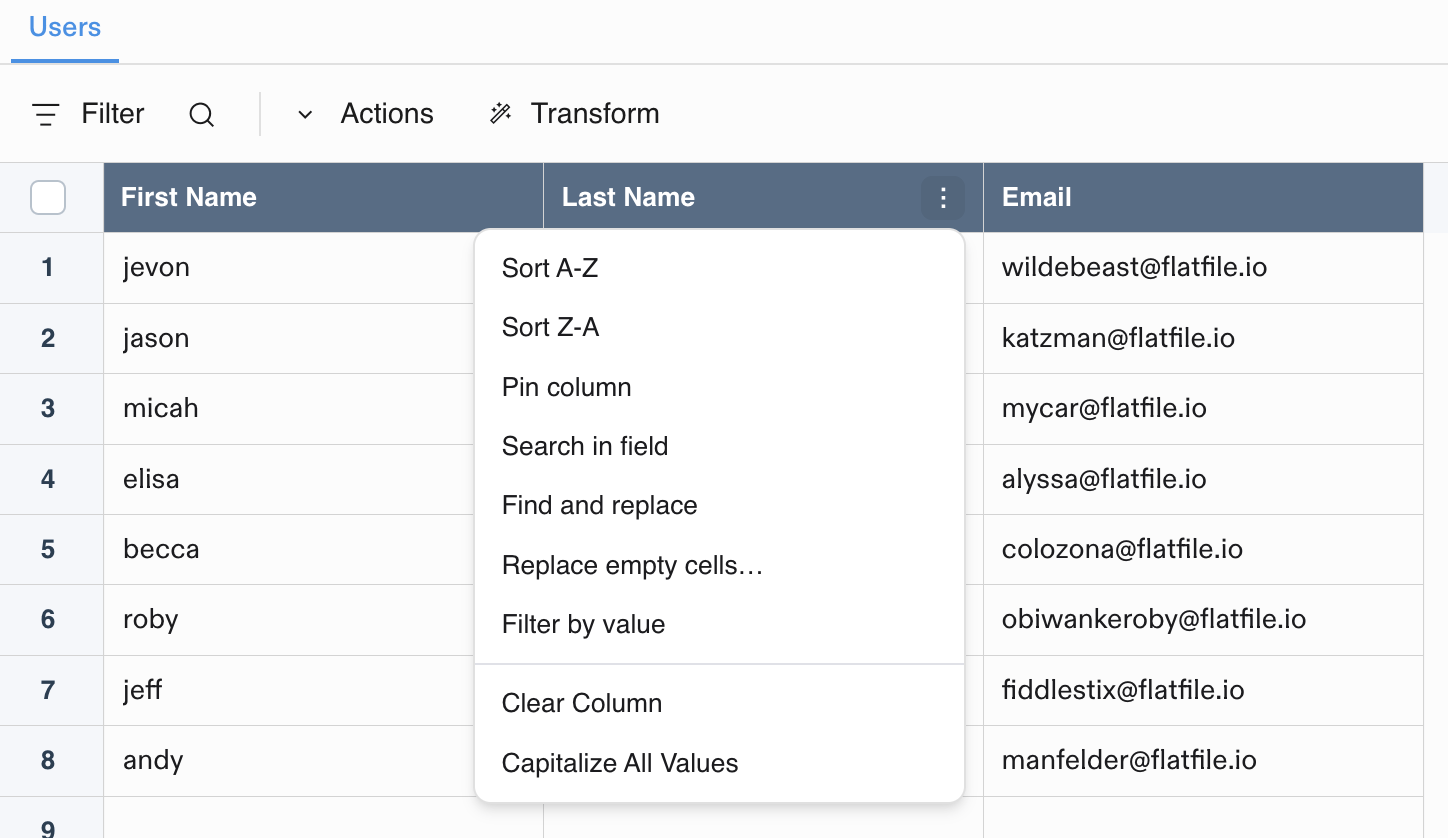
Example Field Action dropdown in column header (Capitalize All Values)
- Column-specific data transformations (e.g., capitalizing all values in a name field)
- Field-level validation operations
- Data formatting specific to a column type
- Column-specific cleanup operations
Usage
Theprimary property does not affect the UI for Field actions.
Note: Field Actions are essentially an extension of Sheet actions - therefore their operation names are prefixed with
sheet:, and the column key is available in the job data.Blueprint Configuration
First, configure your field action in your Blueprint by adding it to the field definition:Listener Implementation
Next, create a listener to handle thejob:ready event for your field action. Field actions use the sheet:operationName job pattern and provide field context through the job’s subject parameters.
Key Differences from Other Action Types
Field actions have several unique characteristics:- Job Pattern: Use
sheet:operationName - Context Access: Field key is available via
job.subject.params.columnKey - UI Location: Appear in column header dropdown menus
- Configuration: Defined within individual field objects in the Blueprint
Document Actions
Example Document Action
Usage
If you configureprimary: true on an Action, it will be highlighted in the Document.
Document Configuration
Define Document-mounted Actions using theactions parameter when you create a Document.
Listener Implementation
In your listener, listen for the job’s event and perform your desired operations.File Actions
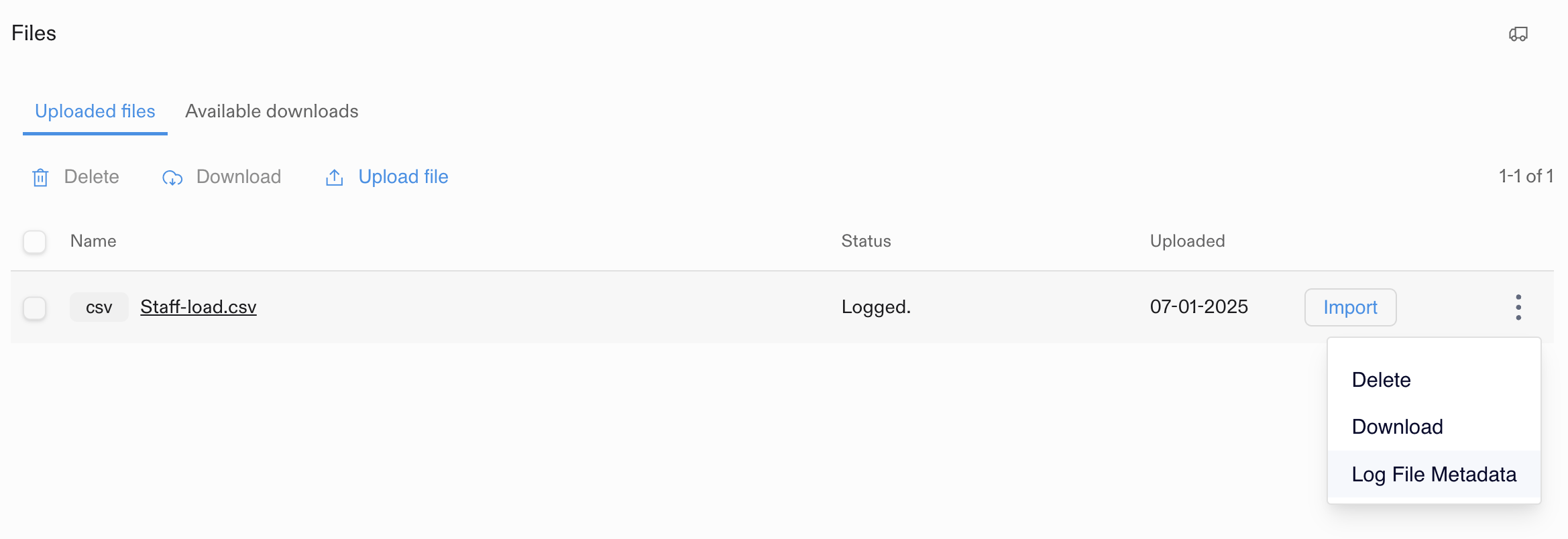
Example File Action (Log File Metadata)
Usage
You can attach additional actions to a File by listening for file events and updating the file’s actions array.File Configuration
First, listen for afile:ready event and add one or more actions to the file.
Listener Implementation
Next, listen forjob:ready and filter on the domain (file) and the operation of where the Action was placed. Be sure to complete the job when it’s done.
Action Parameters
Required Parameters
Optional Parameters
Constraint Types
hasAllValid: Disables action when there are invalid recordshasSelection: Disables action when no records are selected (Sheet actions only)hasData: Disables action when there are no records
Mode Types
foreground: Prevents interacting with the entire resource until completebackground: Runs in the background without blocking the UItoolbarBlocking: Disables sheet-level toolbar and column header menus while allowing manual record entry
Usage
An Action with all of the above properties would look like this:Input Forms
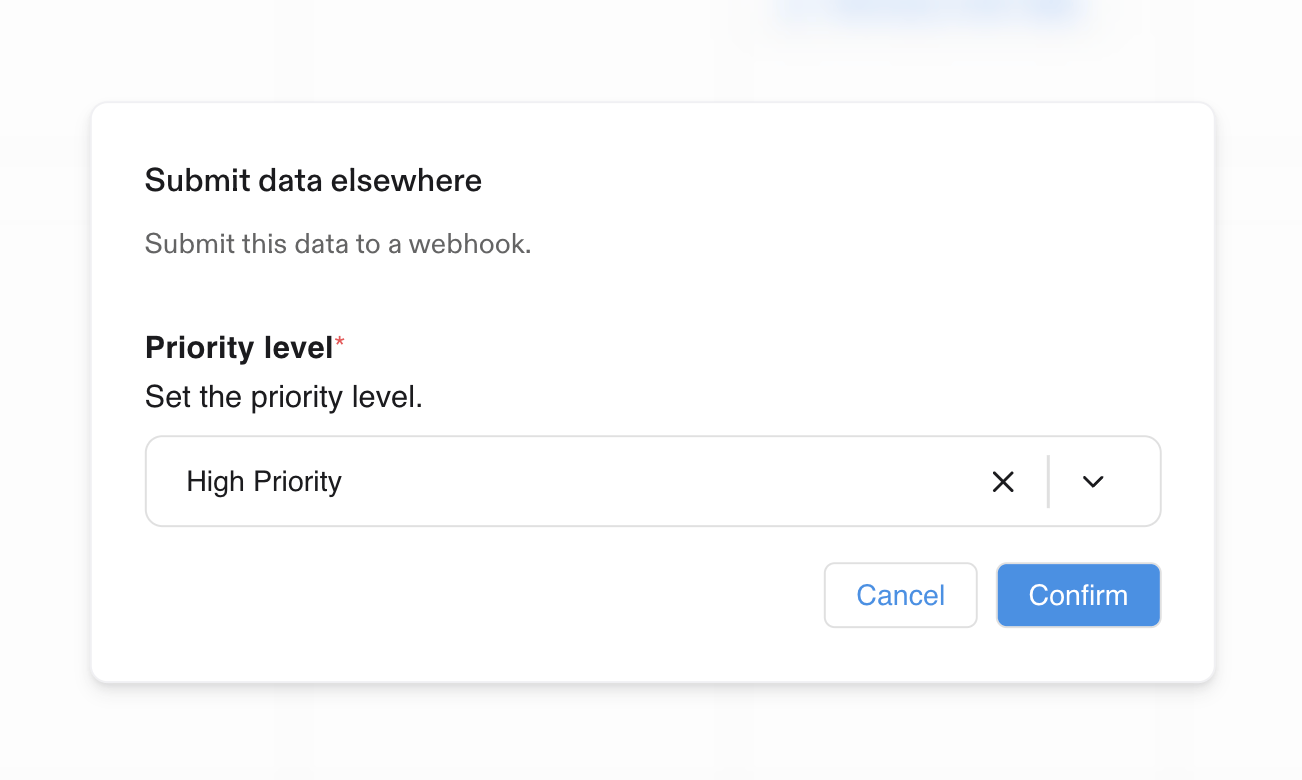
Example Input Form
Configuration
Fields
Config (for enum fields)
Options
Field Constraints
Usage
First, configure your action to have an inputForm on your Blueprint. These will appear once the action button is clicked.job:ready and filter on the job you’d like to process. Grab the data entered in the form from the job itself and leverage it as required for your use case.
Constraints
Usage
Workbook & Sheet Actions
- Adding a
hasAllValidconstraint on an Action will disable a Workbook Action when there are invalid records. - Adding a
hasDataon an Action will disable a Workbook Action when there are no records.
Sheet Actions Only
Adding a constraint ofhasSelection on an Action will disable a Sheet Action when no records in the Sheet are selected.
Messages
Add custom messages to actions, tailored according to their state:- Error
- Info