> ## Documentation Index
> Fetch the complete documentation index at: https://flatfile.com/docs/llms.txt
> Use this file to discover all available pages before exploring further.
# Workbooks
> Database-like containers with type-strict Blueprints for data import
## What are Workbooks?
Workbooks are analogous to a database, and like a database, they are configured with a type-strict [Blueprint](/core-concepts/blueprints). A Workbook replaces the spreadsheet template you may share with your users today when requesting data during the data collection phase of customer onboarding or other file-based data exchange processes.
Unlike a spreadsheet, Workbooks are designed to allow your team and users to validate, correct, and import data with real-time feedback.
Workbooks are effectively *containers* for related [Sheets](/core-concepts/sheets). Inside a any Workbook, you can define multiple Sheets that can [reference](/core-concepts/fields#reference) each other's data.
## Basic Blueprint Structure
* A [Blueprint](/core-concepts/blueprints) defines the data structure for any number of [Spaces](/core-concepts/spaces)
* A [Space](/core-concepts/blueprints) may contain many [Workbooks](/core-concepts/workbooks) and many [Documents](/core-concepts/documents)
* A [Document](/core-concepts/documents) contains static documentation and may contain many [Document-level Actions](/guides/using-actions#document-actions)
* A [Workbook](/core-concepts/workbooks) may contain many [Sheets](/core-concepts/sheets) and many [Workbook-level Actions](/guides/using-actions#workbook-actions)
* A [Sheet](/core-concepts/sheets) may contain many [Fields](/core-concepts/fields) and many [Sheet-level Actions](/guides/using-actions#sheet-actions)
* A [Field](/core-concepts/fields) defines a single column of data, and may contain many [Field-level Actions](/guides/using-actions#field-actions)
## Example Workbook Configuration
The following examples demonstrate the configuration of isolated Workbooks, which are intended to be used in the context of a [Blueprint](/core-concepts/blueprints) configuration.
### Single-Sheet Workbook Configuration
This example configures a single [Workbook](/core-concepts/workbooks) with a single [Sheet](/core-concepts/sheets) containing two [Fields](/core-concepts/fields).
```javascript theme={null}
const customerWorkbook = {
name: "Customer Import",
description: "Import and validate customer data",
sheets: [
{
name: "customers",
slug: "customers",
fields: [
{
key: "name",
type: "string",
label: "Full Name",
constraints: [{ type: "required" }],
},
{
key: "email",
type: "string",
label: "Email Address",
constraints: [{ type: "required" }, { type: "unique" }],
},
],
},
],
};
```
### Multi-Sheet Workbook Configuration
This example configures a [Workbook](/core-concepts/workbooks) with three [Sheets](/core-concepts/sheets) containing several [Fields](/core-concepts/fields) each.
```javascript theme={null}
const ecommerceWorkbook = {
name: "E-commerce Data Import",
description: "Import customers, products, and orders",
sheets: [
{
name: "customers",
slug: "customers",
fields: [
{ key: "customerId", type: "string", label: "Customer ID" },
{ key: "email", type: "string", label: "Email" },
{ key: "firstName", type: "string", label: "First Name" },
{ key: "lastName", type: "string", label: "Last Name" },
],
},
{
name: "products",
slug: "products",
fields: [
{ key: "productId", type: "string", label: "Product ID" },
{ key: "name", type: "string", label: "Product Name" },
{ key: "price", type: "number", label: "Price" },
{ key: "category", type: "string", label: "Category" },
],
},
{
name: "orders",
slug: "orders",
fields: [
{ key: "orderId", type: "string", label: "Order ID" },
{
key: "customerId",
type: "reference",
label: "Customer",
config: { ref: "customers", key: "customerId" },
},
{
key: "productId",
type: "reference",
label: "Product",
config: { ref: "products", key: "productId" },
},
{ key: "quantity", type: "number", label: "Quantity" },
{ key: "orderDate", type: "date", label: "Order Date" },
],
},
],
};
```
### Actions and Workflows
This example configures a [Workbook](/core-concepts/workbooks) with three [Actions](/core-concepts/actions) that can be used to validate and enrich the data in the workbook.
**A note about Actions:** Actions also require a listener to respond to the event published by clicking
on them. For more, see [Using Actions](/guides/using-actions)
```javascript theme={null}
const workbookWithActions = {
name: "Advanced Customer Import",
sheets: [customerSheet, productsSheet],
actions: [
{
operation: "validate-all",
mode: "foreground",
label: "Validate All Data",
description: "Run comprehensive validation on all sheets",
primary: true,
constraints: [
{
type: "hasData",
},
],
},
{
operation: "enrich-data",
mode: "background",
label: "Enrich Customer Data",
description: "Add company information and social profiles",
constraints: [
{
type: "hasData",
},
],
},
{
operation: "export-to-crm",
mode: "foreground",
label: "Export to CRM",
description: "Send validated customers to Salesforce",
constraints: [
{
type: "hasAllValid",
},
],
},
],
};
```
### Workbook Metadata
For comprehensive metadata usage patterns, see our [metadata guide](/guides/utilizing-metadata).
Add contextual information:
```javascript theme={null}
const metadataWorkbook = {
name: "Q1 2024 Customer Import",
description: "Quarterly customer data migration for Q1 2024",
metadata: {
version: "2.1",
department: "Sales",
projectId: "PROJ-2024-001",
},
sheets: [customerSheet],
};
```
### Workbook Namespaces
Workbooks can be assigned [namespaces](/guides/namespaces-and-filters) to enable granular event filtering and isolation within the same space:
```javascript theme={null}
const workbook = {
name: 'Employee Data Processing',
namespace: 'staging', // Simple string namespace
sheets: [/* your sheets */]
};
```
Namespaces allow you to apply different [listeners](/core-concepts/listeners) and processing logic to different types of workbooks within the same space. For detailed examples and patterns, see the [Namespaces and Filters guide](/guides/namespaces-and-filters).
## Folders
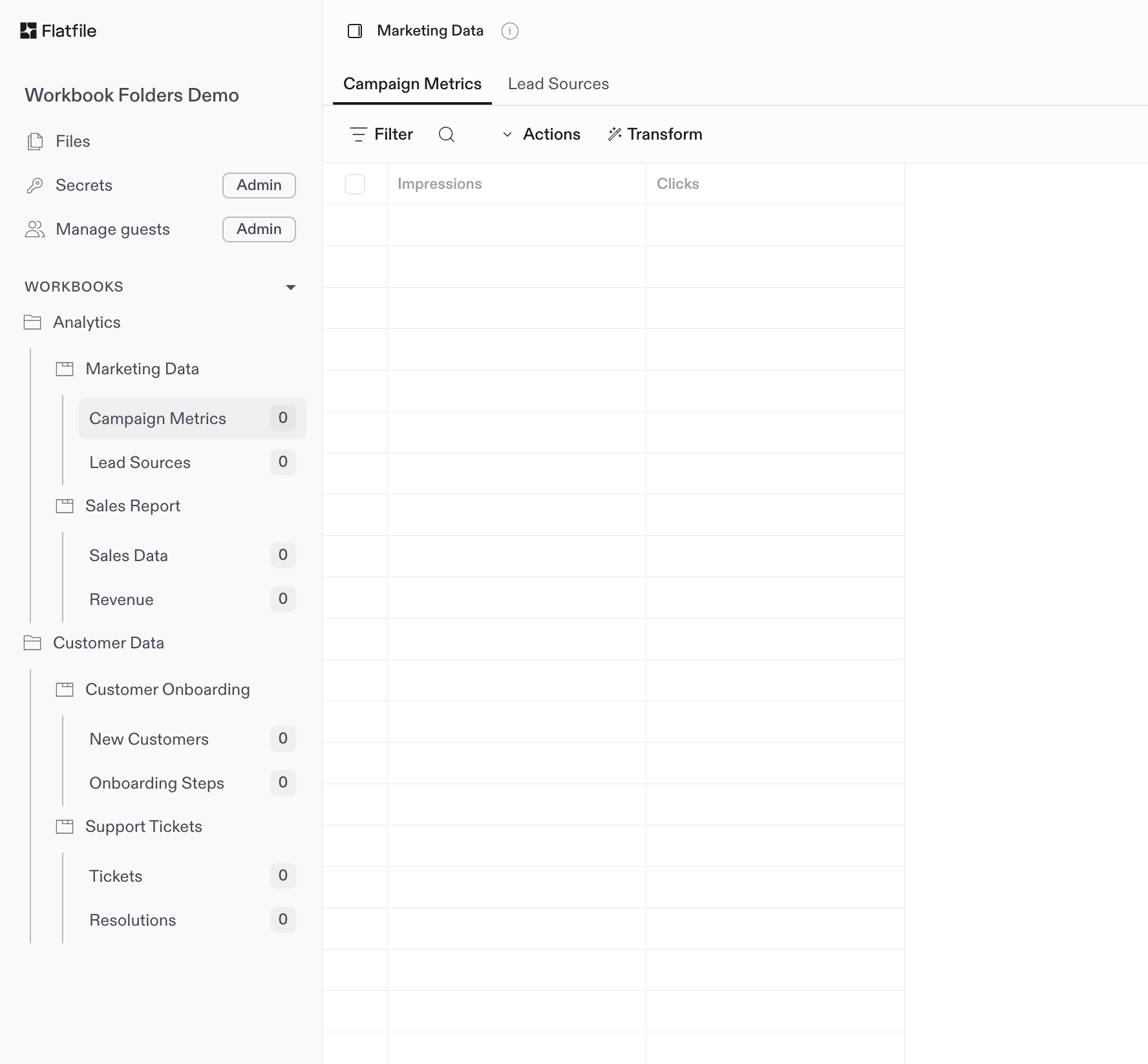
Folders provide a simple way to organize Workbooks within a Space into named groupings in the Flatfile UI. Similar to organizing files in folders on your computer, you can group related Workbooks together for better organization and navigation. Folders have no functional impact on the data itself; their only purpose is to help you organize your Workbooks visually.
### Configuring Workbooks with Folders
Assigning a Folder to a Workbook is as simple as adding a `folder` property to your Workbook [Blueprint](/core-concepts/blueprints) when [configuring your Space](/core-concepts/spaces#space-configuration) (or otherwise creating or updating a Workbook via the API). If you add the same folder to multiple Workbooks, they will be grouped together in the UI.
The following example defines four Workbooks (**Marketing Data**, **Sales Report**, **Customer Onboarding**, and **Support Tickets**) split evenly between two folders (**Analytics** and **Customer Data**).
Sheets also have an similar feature called [Collections](/core-concepts/sheets#collections), which you can use to group associated Sheets within a Workbook.
You can think of **Folders** and **Collections** like a filing system:
* **Folders** help you organize your Workbooks within a Space (like organizing binders on a shelf)
* [Collections](/core-concepts/sheets#organizing-sheets-with-collections) help you organize Sheets within each Workbook (like organizing tabs within a binder).
 ```javascript theme={null}
// Analytics folder
const marketingDataWorkbook = {
name: "Marketing Data",
folder: "Analytics",
sheets: [campaignMetricsSheet, leadSourcesSheet]
};
const salesReportWorkbook = {
name: "Sales Report",
folder: "Analytics",
sheets: [salesDataSheet, revenueSheet]
};
// Customer Data folder
const onboardingWorkbook = {
name: "Customer Onboarding",
folder: "Customer Data",
sheets: [newCustomersSheet, onboardingStepsSheet]
};
const supportTicketsWorkbook = {
name: "Support Tickets",
folder: "Customer Data",
sheets: [ticketsSheet, resolutionsSheet]
};
```
```javascript theme={null}
// Analytics folder
const marketingDataWorkbook = {
name: "Marketing Data",
folder: "Analytics",
sheets: [campaignMetricsSheet, leadSourcesSheet]
};
const salesReportWorkbook = {
name: "Sales Report",
folder: "Analytics",
sheets: [salesDataSheet, revenueSheet]
};
// Customer Data folder
const onboardingWorkbook = {
name: "Customer Onboarding",
folder: "Customer Data",
sheets: [newCustomersSheet, onboardingStepsSheet]
};
const supportTicketsWorkbook = {
name: "Support Tickets",
folder: "Customer Data",
sheets: [ticketsSheet, resolutionsSheet]
};
```