> ## Documentation Index
> Fetch the complete documentation index at: https://flatfile.com/docs/llms.txt
> Use this file to discover all available pages before exploring further.
# Blueprints
> Define your data schema to structure exactly how data should look, behave, and connect
## What is a Blueprint?
Blueprints enable you to create repeatable, reliable data import experiences that scale with your needs while maintaining data quality and user experience standards.
A Blueprint is your complete data definition in Flatfile. It controls how your data should look, behave, and connect—from simple field validations (like `unique` and `required`) to complex [relationships](/core-concepts/fields#reference) between [sheets](/core-concepts/sheets). You can even create [filtered reference fields](/core-concepts/fields#reference-field-filtering) that dynamically control available dropdown options based on other field values. Think of it as an intelligent template that ensures you collect the right data in the right format, every time.
**Terminology Note**: "Blueprint" is Flatfile's term for what might be called a
"schema" in other systems. Throughout Flatfile's documentation and API, we use
"Blueprint" as the standard term for data structure definitions to distinguish
Flatfile's comprehensive data modeling approach from generic schema concepts.
## How Blueprints Work
Every [Space](/core-concepts/spaces) has exactly one Blueprint that defines its data structure. Whenever a new space is created, the Flatfile Platform automatically triggers a `space:configure` [Job](/core-concepts/jobs), and you can configure a [Listener](/core-concepts/listeners) to pick up that job and configure the new space by defining its Blueprint. Creating workbooks, sheets, and actions **is** your Blueprint definition, establishing the data schema that will govern all data within that Space.
To make that part easier, we have provided the [Space Configure Plugin](/plugins/space-configure) to abstract away the Job/Listener code, allowing you to focus on what matters: Preparing your space for data.
## Basic Blueprint Structure
* A [Blueprint](/core-concepts/blueprints) defines the data structure for any number of [Spaces](/core-concepts/spaces)
* A [Space](/core-concepts/blueprints) may contain many [Workbooks](/core-concepts/workbooks) and many [Documents](/core-concepts/documents)
* A [Document](/core-concepts/documents) contains static documentation and may contain many [Document-level Actions](/guides/using-actions#document-actions)
* A [Workbook](/core-concepts/workbooks) may contain many [Sheets](/core-concepts/sheets) and many [Workbook-level Actions](/guides/using-actions#workbook-actions)
* A [Sheet](/core-concepts/sheets) may contain many [Fields](/core-concepts/fields) and many [Sheet-level Actions](/guides/using-actions#sheet-actions)
* A [Field](/core-concepts/fields) defines a single column of data, and may contain many [Field-level Actions](/guides/using-actions#field-actions)
**A note about Actions:** Actions also require a listener to respond to the event published by clicking
on them. For more, see [Using Actions](/guides/using-actions)
## Example Blueprint Configuration
**Recommendation:** Although throughout the documentation we'll be explicitly defining each level of a blueprint, it's important to note that you can split each of your **Workbooks**, **Sheets**, **Documents**, and **Actions** definitions into separate files and import them. Then your Workbook blueprint can be as simple as:
```javascript theme={null}
const companyWorkbook = {
name: "Company Workbook",
documents: [dataProcessingSteps]
sheets: [usersSheet],
actions: [exportToCRM],
};
```
This leads to a more maintainable codebase, and the modularity opens the door for code reuse. For instance, you'll be able to use `usersSheet.slug` in your listener code to filter or differentiate between sheets, or re-use `exportToSCRM` in any other workbook that needs to export data to a CRM.
This example shows a Blueprint definition for [Space configuration](/core-concepts/spaces#space-configuration). It creates a single [Workbook](/core-concepts/workbooks) with a single [Document](/core-concepts/documents) and a single [Sheet](/core-concepts/sheets) containing two [Fields](/core-concepts/fields) and one [Action](/core-concepts/actions).
```javascript theme={null}
const workbooks = [{
name: "Company Workbook",
documents: [
{
title: "Data Processing Walkthrough",
body: "1. Add Data\n2. Process Data\n3. Export Data",
actions: [
{
operation: "confirm",
label: "Confirm",
type: "string",
primary: true,
},
],
},
],
sheets: [
{
name: "Users",
slug: "users",
fields: [
{
key: "fname",
type: "string",
label: "First Name",
},
{
key: "lname",
type: "string",
label: "Last Name",
},
],
actions: [
{
operation: "validate-inventory",
mode: "background",
label: "Validate Inventory",
description: "Check product availability against inventory system",
},
],
},
],
actions: [
{
operation: "export-to-crm",
mode: "foreground",
label: "Export to CRM",
description: "Send validated customers to Salesforce",
},
],
}];
```
## Workbook Folders and Sheet Collections
Although they have no impact on your data itself or its structure, [Workbook Folders](/core-concepts/workbooks#folders) and [Sheet Collections](/core-concepts/sheets#collections) are a powerful way to organize your data in the Flatfile UI.
They are essentially named labels that you assign to your Workbooks and Sheets, which the Flatfile UI interprets to group them together (and apart from others). You can define them directly in your [Blueprint](/core-concepts/blueprints) when [configuring your Space](/core-concepts/spaces#space-configuration) or when otherwise creating or updating a Workbook or Sheet via the [API](https://reference.flatfile.com).
You can think of **Folders** and **Collections** like a filing system:
* [Folders](/core-concepts/workbooks#folders) help you organize your Workbooks within a Space (like organizing binders on a shelf).
* [Collections](/core-concepts/sheets#collections) help you organize Sheets within each Workbook (like organizing tabs within a binder).
This is a great way to declutter your Sidebar and keep your data organized and easy to find in the Flatfile UI.
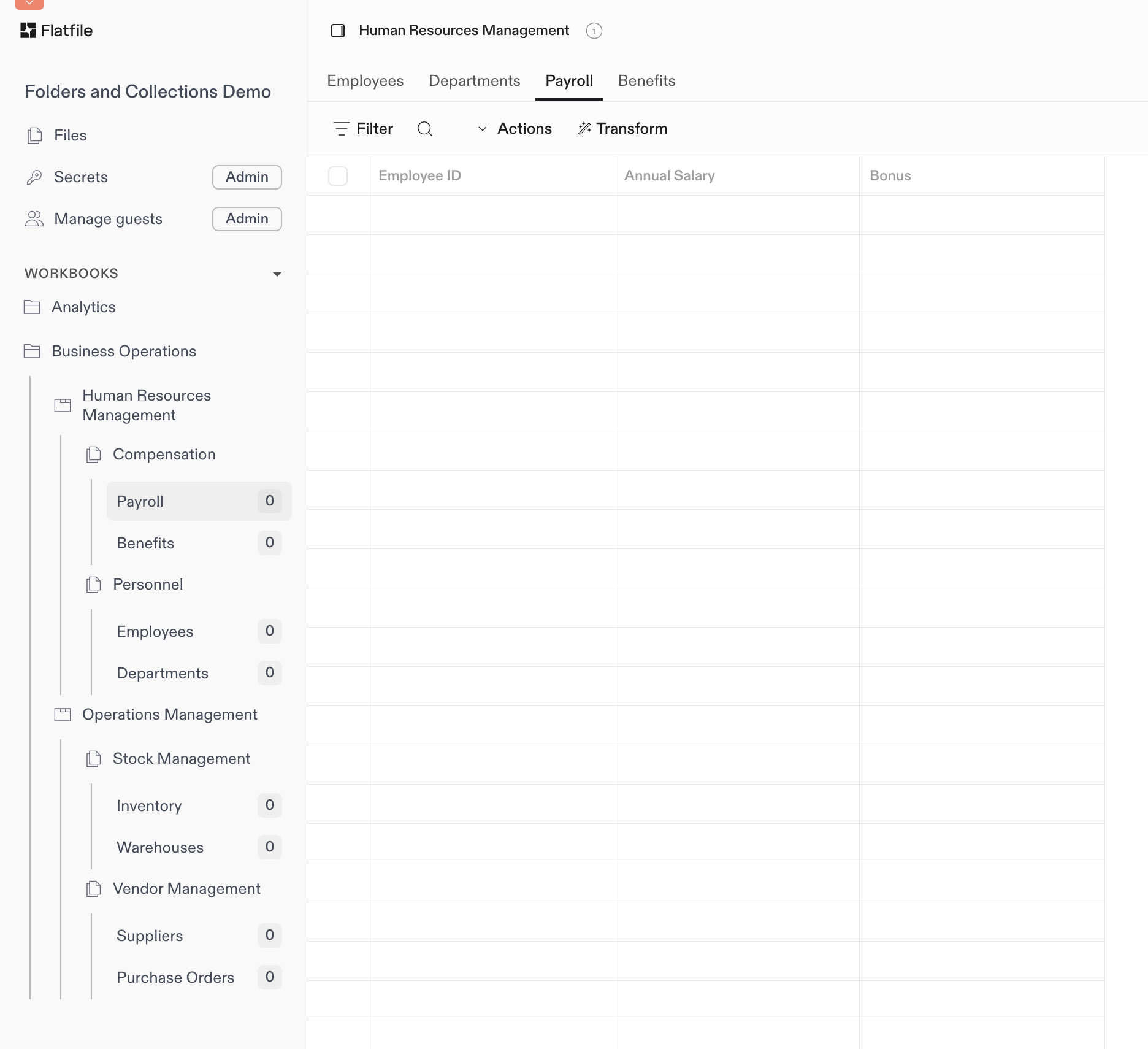
In the following example, we have several Workbooks grouped into two Folders:
* **Analytics** (folded)
* **Business Operations** (unfolded)
The **Business Operations** Workbooks each contain several Sheets grouped into Collections:
* **Compensation** and **Personel**
* **Stock Management** and **Vendor Management**
 ```javascript theme={null}
const salesReportWorkbook = {
name: "Sales Analytics",
folder: "Analytics",
sheets: [
// Source Data collection (2 sheets)
salesDataSheet,
revenueSheet,
// Analytics collection (2 sheets)
campaignMetricsSheet,
leadSourcesSheet
]
};
const humanResourcesWorkbook = {
name: "Human Resources Management",
folder: "Business Operations",
sheets: [
// Personnel collection (2 sheets)
employeesSheet,
departmentsSheet,
// Compensation collection (2 sheets)
payrollSheet,
benefitsSheet
]
};
const operationsWorkbook = {
name: "Operations Management",
folder: "Business Operations",
sheets: [
// Stock Management collection (2 sheets)
inventorySheet,
warehousesSheet,
// Vendor Management collection (2 sheets)
suppliersSheet,
purchaseOrdersSheet
]
};
```
```javascript theme={null}
const salesDataSheet = {
name: "Sales Data",
collection: "Source Data",
fields: [
{ key: "name", type: "string", label: "Customer Name" },
{ key: "email", type: "string", label: "Email Address" }
]
};
const revenueSheet = {
name: "Revenue",
collection: "Analytics",
fields: [
{ key: "revenue", type: "number", label: "Revenue" }
]
};
const campaignMetricsSheet = {
name: "Campaign Metrics",
collection: "Analytics",
fields: [
{ key: "impressions", type: "number", label: "Impressions" },
{ key: "clicks", type: "number", label: "Clicks" }
]
};
const leadSourcesSheet = {
name: "Lead Sources",
collection: "Analytics",
fields: [
{ key: "source", type: "string", label: "Source" },
{ key: "conversion_rate", type: "number", label: "Conversion Rate" }
]
};
const employeesSheet = {
name: "Employees",
collection: "Personnel",
fields: [
{ key: "employee_id", type: "string", label: "Employee ID" },
{ key: "name", type: "string", label: "Full Name" },
{ key: "department", type: "string", label: "Department" },
{ key: "hire_date", type: "date", label: "Hire Date" }
]
};
const departmentsSheet = {
name: "Departments",
collection: "Personnel",
fields: [
{ key: "dept_code", type: "string", label: "Department Code" },
{ key: "dept_name", type: "string", label: "Department Name" },
{ key: "manager", type: "string", label: "Manager" }
]
};
const positionsSheet = {
name: "Job Positions",
collection: "Personnel",
fields: [
{ key: "position_id", type: "string", label: "Position ID" },
{ key: "title", type: "string", label: "Job Title" },
{ key: "level", type: "string", label: "Job Level" },
{ key: "department", type: "string", label: "Department" }
]
};
const payrollSheet = {
name: "Payroll",
collection: "Compensation",
fields: [
{ key: "employee_id", type: "string", label: "Employee ID" },
{ key: "salary", type: "number", label: "Annual Salary" },
{ key: "bonus", type: "number", label: "Bonus" }
]
};
const benefitsSheet = {
name: "Benefits",
collection: "Compensation",
fields: [
{ key: "benefit_type", type: "string", label: "Benefit Type" },
{ key: "cost", type: "number", label: "Monthly Cost" },
{ key: "coverage", type: "string", label: "Coverage Level" }
]
};
const bonusesSheet = {
name: "Performance Bonuses",
collection: "Compensation",
fields: [
{ key: "employee_id", type: "string", label: "Employee ID" },
{ key: "performance_rating", type: "string", label: "Performance Rating" },
{ key: "bonus_amount", type: "number", label: "Bonus Amount" },
{ key: "quarter", type: "string", label: "Quarter" }
]
};
const attendanceSheet = {
name: "Attendance",
collection: "Time Tracking",
fields: [
{ key: "employee_id", type: "string", label: "Employee ID" },
{ key: "date", type: "date", label: "Date" },
{ key: "hours_worked", type: "number", label: "Hours Worked" },
{ key: "overtime", type: "number", label: "Overtime Hours" }
]
};
const leaveRequestsSheet = {
name: "Leave Requests",
collection: "Time Tracking",
fields: [
{ key: "request_id", type: "string", label: "Request ID" },
{ key: "employee_id", type: "string", label: "Employee ID" },
{ key: "leave_type", type: "string", label: "Leave Type" },
{ key: "start_date", type: "date", label: "Start Date" },
{ key: "end_date", type: "date", label: "End Date" }
]
};
const inventorySheet = {
name: "Inventory",
collection: "Stock Management",
fields: [
{ key: "sku", type: "string", label: "SKU" },
{ key: "product_name", type: "string", label: "Product Name" },
{ key: "quantity", type: "number", label: "Quantity in Stock" },
{ key: "reorder_level", type: "number", label: "Reorder Level" }
]
};
const warehousesSheet = {
name: "Warehouses",
collection: "Stock Management",
fields: [
{ key: "warehouse_id", type: "string", label: "Warehouse ID" },
{ key: "location", type: "string", label: "Location" },
{ key: "capacity", type: "number", label: "Storage Capacity" },
{ key: "manager", type: "string", label: "Warehouse Manager" }
]
};
const stockMovementsSheet = {
name: "Stock Movements",
collection: "Stock Management",
fields: [
{ key: "movement_id", type: "string", label: "Movement ID" },
{ key: "sku", type: "string", label: "SKU" },
{ key: "quantity", type: "number", label: "Quantity" },
{ key: "movement_type", type: "string", label: "Movement Type" },
{ key: "date", type: "date", label: "Date" }
]
};
const suppliersSheet = {
name: "Suppliers",
collection: "Vendor Management",
fields: [
{ key: "supplier_id", type: "string", label: "Supplier ID" },
{ key: "company_name", type: "string", label: "Company Name" },
{ key: "contact_person", type: "string", label: "Contact Person" },
{ key: "email", type: "string", label: "Email" }
]
};
const purchaseOrdersSheet = {
name: "Purchase Orders",
collection: "Vendor Management",
fields: [
{ key: "order_id", type: "string", label: "Order ID" },
{ key: "supplier_id", type: "string", label: "Supplier ID" },
{ key: "order_date", type: "date", label: "Order Date" },
{ key: "total_amount", type: "number", label: "Total Amount" }
]
};
const vendorPerformanceSheet = {
name: "Vendor Performance",
collection: "Vendor Management",
fields: [
{ key: "supplier_id", type: "string", label: "Supplier ID" },
{ key: "on_time_delivery", type: "number", label: "On-Time Delivery %" },
{ key: "quality_rating", type: "number", label: "Quality Rating" },
{ key: "cost_competitiveness", type: "number", label: "Cost Rating" }
]
};
```
```javascript theme={null}
const salesReportWorkbook = {
name: "Sales Analytics",
folder: "Analytics",
sheets: [
// Source Data collection (2 sheets)
salesDataSheet,
revenueSheet,
// Analytics collection (2 sheets)
campaignMetricsSheet,
leadSourcesSheet
]
};
const humanResourcesWorkbook = {
name: "Human Resources Management",
folder: "Business Operations",
sheets: [
// Personnel collection (2 sheets)
employeesSheet,
departmentsSheet,
// Compensation collection (2 sheets)
payrollSheet,
benefitsSheet
]
};
const operationsWorkbook = {
name: "Operations Management",
folder: "Business Operations",
sheets: [
// Stock Management collection (2 sheets)
inventorySheet,
warehousesSheet,
// Vendor Management collection (2 sheets)
suppliersSheet,
purchaseOrdersSheet
]
};
```
```javascript theme={null}
const salesDataSheet = {
name: "Sales Data",
collection: "Source Data",
fields: [
{ key: "name", type: "string", label: "Customer Name" },
{ key: "email", type: "string", label: "Email Address" }
]
};
const revenueSheet = {
name: "Revenue",
collection: "Analytics",
fields: [
{ key: "revenue", type: "number", label: "Revenue" }
]
};
const campaignMetricsSheet = {
name: "Campaign Metrics",
collection: "Analytics",
fields: [
{ key: "impressions", type: "number", label: "Impressions" },
{ key: "clicks", type: "number", label: "Clicks" }
]
};
const leadSourcesSheet = {
name: "Lead Sources",
collection: "Analytics",
fields: [
{ key: "source", type: "string", label: "Source" },
{ key: "conversion_rate", type: "number", label: "Conversion Rate" }
]
};
const employeesSheet = {
name: "Employees",
collection: "Personnel",
fields: [
{ key: "employee_id", type: "string", label: "Employee ID" },
{ key: "name", type: "string", label: "Full Name" },
{ key: "department", type: "string", label: "Department" },
{ key: "hire_date", type: "date", label: "Hire Date" }
]
};
const departmentsSheet = {
name: "Departments",
collection: "Personnel",
fields: [
{ key: "dept_code", type: "string", label: "Department Code" },
{ key: "dept_name", type: "string", label: "Department Name" },
{ key: "manager", type: "string", label: "Manager" }
]
};
const positionsSheet = {
name: "Job Positions",
collection: "Personnel",
fields: [
{ key: "position_id", type: "string", label: "Position ID" },
{ key: "title", type: "string", label: "Job Title" },
{ key: "level", type: "string", label: "Job Level" },
{ key: "department", type: "string", label: "Department" }
]
};
const payrollSheet = {
name: "Payroll",
collection: "Compensation",
fields: [
{ key: "employee_id", type: "string", label: "Employee ID" },
{ key: "salary", type: "number", label: "Annual Salary" },
{ key: "bonus", type: "number", label: "Bonus" }
]
};
const benefitsSheet = {
name: "Benefits",
collection: "Compensation",
fields: [
{ key: "benefit_type", type: "string", label: "Benefit Type" },
{ key: "cost", type: "number", label: "Monthly Cost" },
{ key: "coverage", type: "string", label: "Coverage Level" }
]
};
const bonusesSheet = {
name: "Performance Bonuses",
collection: "Compensation",
fields: [
{ key: "employee_id", type: "string", label: "Employee ID" },
{ key: "performance_rating", type: "string", label: "Performance Rating" },
{ key: "bonus_amount", type: "number", label: "Bonus Amount" },
{ key: "quarter", type: "string", label: "Quarter" }
]
};
const attendanceSheet = {
name: "Attendance",
collection: "Time Tracking",
fields: [
{ key: "employee_id", type: "string", label: "Employee ID" },
{ key: "date", type: "date", label: "Date" },
{ key: "hours_worked", type: "number", label: "Hours Worked" },
{ key: "overtime", type: "number", label: "Overtime Hours" }
]
};
const leaveRequestsSheet = {
name: "Leave Requests",
collection: "Time Tracking",
fields: [
{ key: "request_id", type: "string", label: "Request ID" },
{ key: "employee_id", type: "string", label: "Employee ID" },
{ key: "leave_type", type: "string", label: "Leave Type" },
{ key: "start_date", type: "date", label: "Start Date" },
{ key: "end_date", type: "date", label: "End Date" }
]
};
const inventorySheet = {
name: "Inventory",
collection: "Stock Management",
fields: [
{ key: "sku", type: "string", label: "SKU" },
{ key: "product_name", type: "string", label: "Product Name" },
{ key: "quantity", type: "number", label: "Quantity in Stock" },
{ key: "reorder_level", type: "number", label: "Reorder Level" }
]
};
const warehousesSheet = {
name: "Warehouses",
collection: "Stock Management",
fields: [
{ key: "warehouse_id", type: "string", label: "Warehouse ID" },
{ key: "location", type: "string", label: "Location" },
{ key: "capacity", type: "number", label: "Storage Capacity" },
{ key: "manager", type: "string", label: "Warehouse Manager" }
]
};
const stockMovementsSheet = {
name: "Stock Movements",
collection: "Stock Management",
fields: [
{ key: "movement_id", type: "string", label: "Movement ID" },
{ key: "sku", type: "string", label: "SKU" },
{ key: "quantity", type: "number", label: "Quantity" },
{ key: "movement_type", type: "string", label: "Movement Type" },
{ key: "date", type: "date", label: "Date" }
]
};
const suppliersSheet = {
name: "Suppliers",
collection: "Vendor Management",
fields: [
{ key: "supplier_id", type: "string", label: "Supplier ID" },
{ key: "company_name", type: "string", label: "Company Name" },
{ key: "contact_person", type: "string", label: "Contact Person" },
{ key: "email", type: "string", label: "Email" }
]
};
const purchaseOrdersSheet = {
name: "Purchase Orders",
collection: "Vendor Management",
fields: [
{ key: "order_id", type: "string", label: "Order ID" },
{ key: "supplier_id", type: "string", label: "Supplier ID" },
{ key: "order_date", type: "date", label: "Order Date" },
{ key: "total_amount", type: "number", label: "Total Amount" }
]
};
const vendorPerformanceSheet = {
name: "Vendor Performance",
collection: "Vendor Management",
fields: [
{ key: "supplier_id", type: "string", label: "Supplier ID" },
{ key: "on_time_delivery", type: "number", label: "On-Time Delivery %" },
{ key: "quality_rating", type: "number", label: "Quality Rating" },
{ key: "cost_competitiveness", type: "number", label: "Cost Rating" }
]
};
```