> ## Documentation Index
> Fetch the complete documentation index at: https://flatfile.com/docs/llms.txt
> Use this file to discover all available pages before exploring further.
# Actions
> User-triggered operations in Flatfile
An Action is a code-based operation that runs when a user clicks a button or menu item in Flatfile. Actions can be mounted on [Sheets](/core-concepts/sheets), [Workbooks](/core-concepts/workbooks), [Documents](/core-concepts/documents), or Files to trigger custom operations.
Defining a custom Action is a two-step process:
1. Define an Action in your Flatfile blueprint or in your code
2. Create a [Listener](/core-concepts/listeners) to handle the Action
When an Action is triggered, it creates a [Job](/core-concepts/jobs) that your application can listen for and respond to.
Given that Actions are powered by Jobs, the [Jobs Lifecycle](/core-concepts/jobs#jobs-lifecycle) pertains to Actions as well. This means that you can [update progress values/messages](/core-concepts/jobs#updating-job-progress) while an Action is processing, and when it's done you can provide an [Outcome](/core-concepts/jobs#job-outcomes), which allows you to show a success message, automatically [download a generated file](/core-concepts/jobs#file-downloads), or [forward the user](/core-concepts/jobs#internal-navigation) to a generated Document.
For complete implementation details, see our [Using Actions guide](/guides/using-actions).
 ## Types of Actions
### Built-in Actions
Resources in Flatfile come with severaldefault built-in actions like:
* Export/download data
* Delete data or files
* Find and replace (Sheets)
### Developer-Created Actions
You can create custom Actions to handle operations specific to your workflow, such as:
* Sending data to your API when data is ready
* Downloading your data in a specific format
* Validating data against external systems
* Moving data between different resources
* Custom data validations andtransformations
## Where Actions Appear
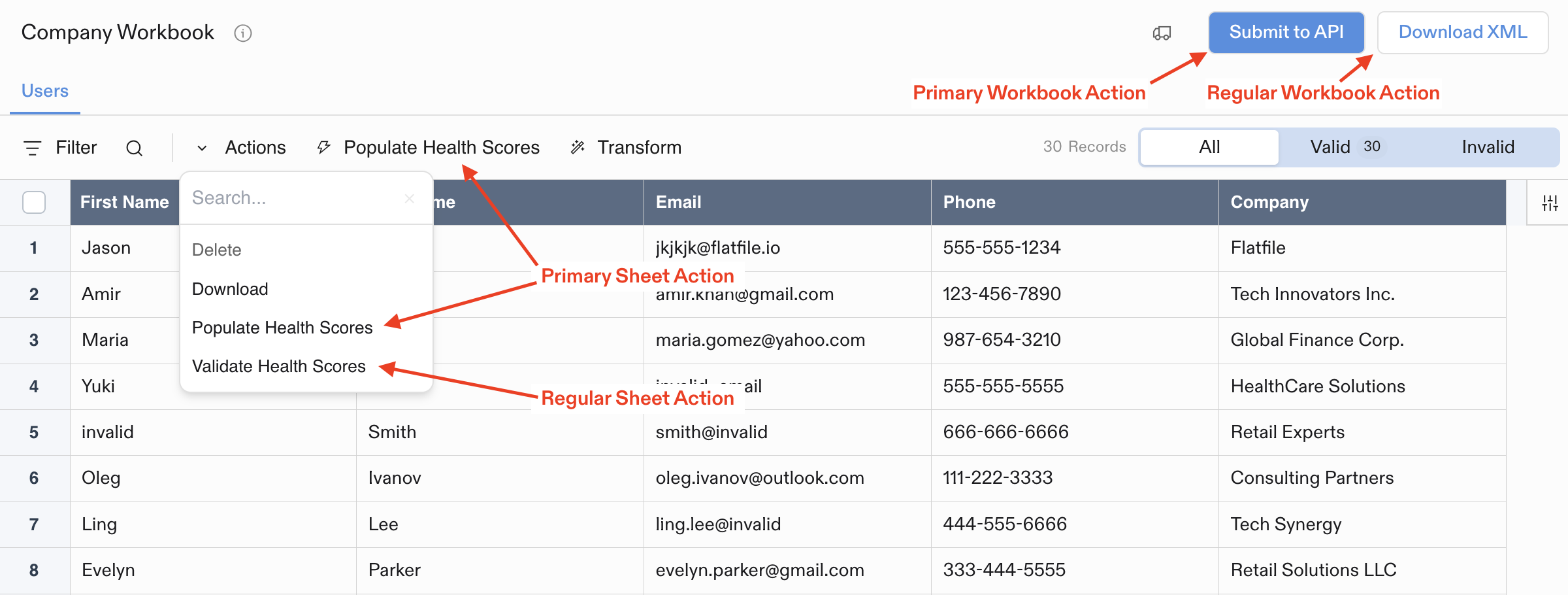
Actions appear in different parts of the UI depending on where they're mounted:
* **Workbook Actions**: Buttons in the top-right corner of Workbooks
* **Sheet Actions**: Dropdown menu in the Sheet toolbar (or top-level button if marked as `primary`)
* **Document Actions**: Buttons in the top-right corner of Documents
* **File Actions**: Dropdown menu for each file in the Files list
## Example Action Configuration
Every Action requires an `operation` (unique identifier) and `label` (display text):
```javascript theme={null}
{
operation: "submitActionBg",
mode: "background",
label: "Submit",
type: "string",
description: "Submit this data to a webhook.",
primary: true,
},
```
Actions support additional options like `primary` status, confirmation dialogs, constraints, and input forms. See the [Using Actions guide](/guides/using-actions) for more details.
## Types of Actions
### Built-in Actions
Resources in Flatfile come with severaldefault built-in actions like:
* Export/download data
* Delete data or files
* Find and replace (Sheets)
### Developer-Created Actions
You can create custom Actions to handle operations specific to your workflow, such as:
* Sending data to your API when data is ready
* Downloading your data in a specific format
* Validating data against external systems
* Moving data between different resources
* Custom data validations andtransformations
## Where Actions Appear
Actions appear in different parts of the UI depending on where they're mounted:
* **Workbook Actions**: Buttons in the top-right corner of Workbooks
* **Sheet Actions**: Dropdown menu in the Sheet toolbar (or top-level button if marked as `primary`)
* **Document Actions**: Buttons in the top-right corner of Documents
* **File Actions**: Dropdown menu for each file in the Files list
## Example Action Configuration
Every Action requires an `operation` (unique identifier) and `label` (display text):
```javascript theme={null}
{
operation: "submitActionBg",
mode: "background",
label: "Submit",
type: "string",
description: "Submit this data to a webhook.",
primary: true,
},
```
Actions support additional options like `primary` status, confirmation dialogs, constraints, and input forms. See the [Using Actions guide](/guides/using-actions) for more details.